As a part of maintaining their up-to-date club details (address, club contact information, etc.), clubs can also enter their board members. Doing so ensures a record of the board’s members at any given time.
Prerequisite
To add a Board Member to a club, they must be accessible in the club’s Govern membership.
- For PowerUp clubs, this means they must have an account on your club’s PowerUp registration portal.
- For non-PowerUp clubs, this means they must have been previously imported (e.g. as a team staff such as a coach or manager, or player). If they have not been previously imported, you may complete a Board Member Import. Click here to view instructions for this process.
Adding Board Members
- After logging into PowerUp GOVERN as a Club Administrator, navigate to the Admin option in the navigation menu on the left and click it to expand the menu. Select the Update Club Details menu item.
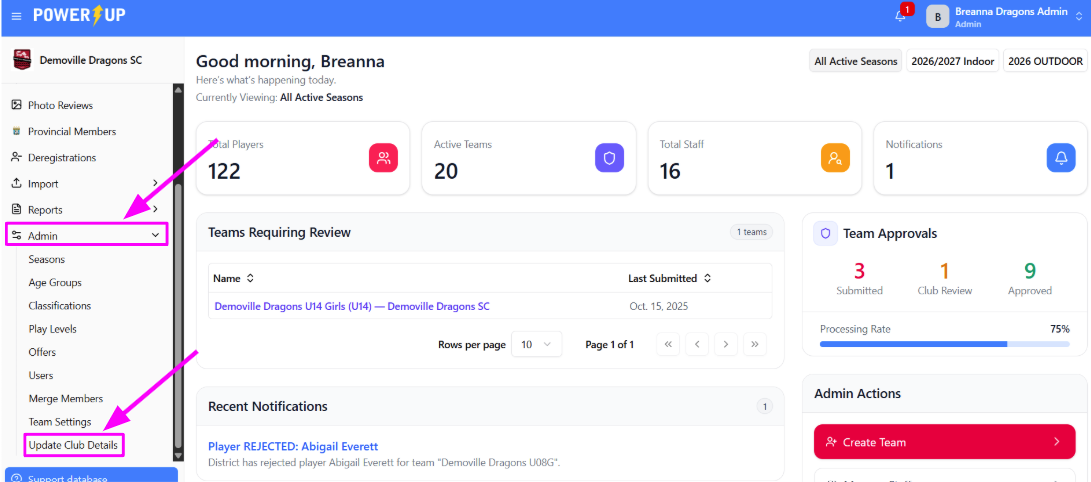
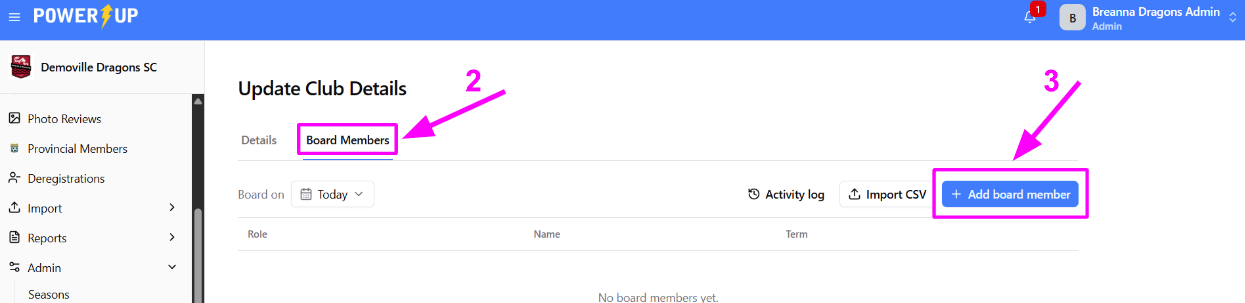
- Click the Board Members tab.
- Here you’ll see the club’s Board Members, as of today. Click the Add board member button.
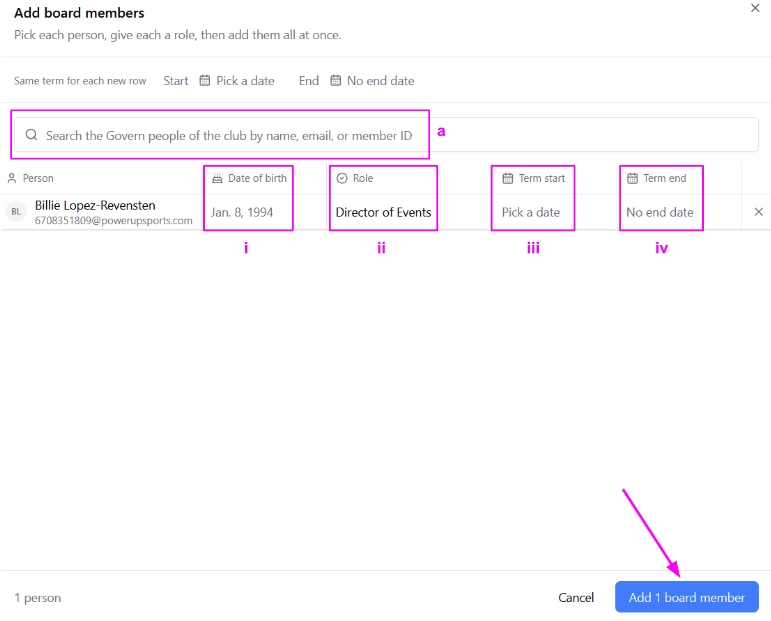
- A slideout will appear on the right, allowing you to select member(s) to add to the board
- Use the search bar to find the individual you wish to add to the board
- Select them
- Repeat as needed for any other individuals you wish to add
- For each individual you have selected:
- Set the DOB if it’s not already there
- Select the role
- Set the term start date
- (optional) Set the term end date
- When ready, click the Add # board memberbutton in the lower right corner
QUICK TIPS:
Search Bar:
- For non-PowerUp clubs, the search bar will search your previously imported members. This includes players, team staff, and board members.
- For PowerUp clubs, the search bar will search all the members (accounts) in your club’s PowerUp registration site.

Term Start/End Date:
If you want to add the same term start (or end date) for all the board members you’re adding, use the “Same term for each new row” option just above the search bar.
Process in Full:

Importing Board Members (Non-PowerUp Clubs Only)
Non-PowerUp clubs can import their board members directly on the Board Members tab of the Update Club Details page.
- On the Board Members tab of the Update Club Details page, click the Import CSV button.
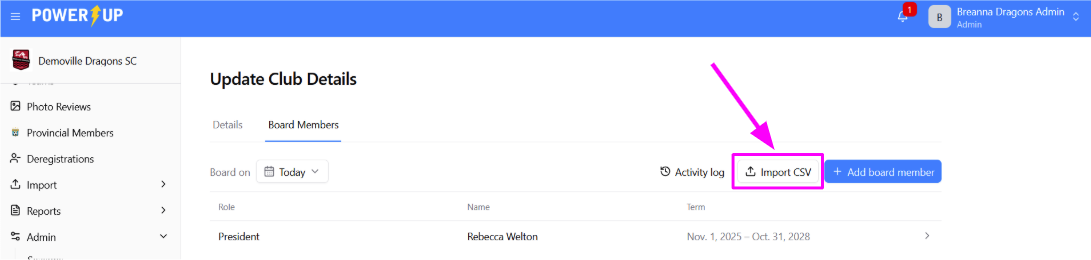
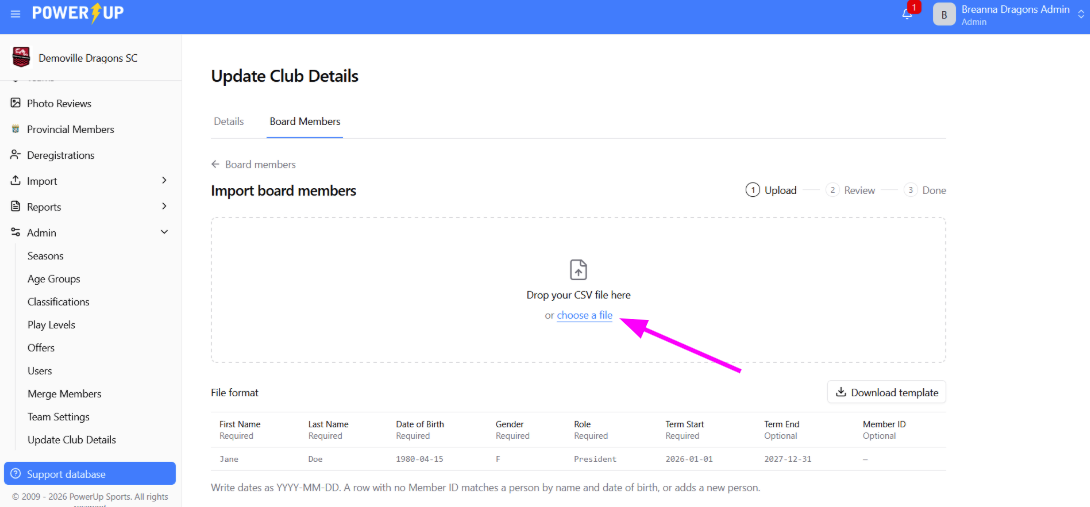
- Click Choose a file to select the file on your computer to upload.
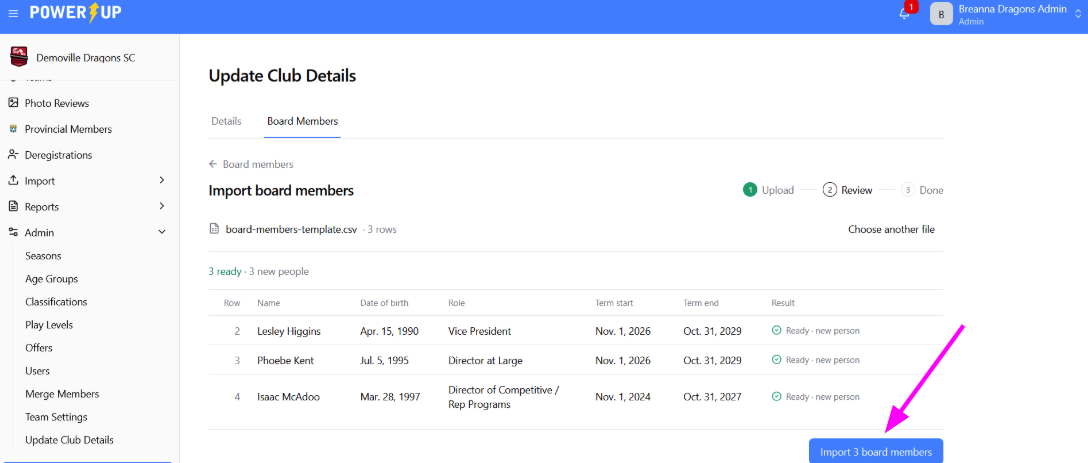
- Review the data for accuracy and when ready click Import # board members button.
NOTE:
The template for uploading board members is different from the template used for importing players and team staff. The text at the bottom of the page explains the required fields and formats, and provides a link to download the template.
Process in Full:

Editing and Removing Board Members
After you've added a Board Member, you can remove them or edit their term dates if needed.
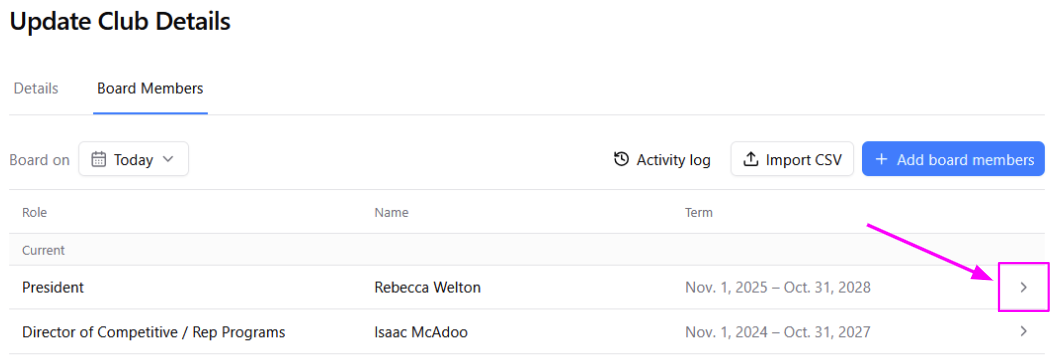
- Select the > on the right side for the relevant individual.
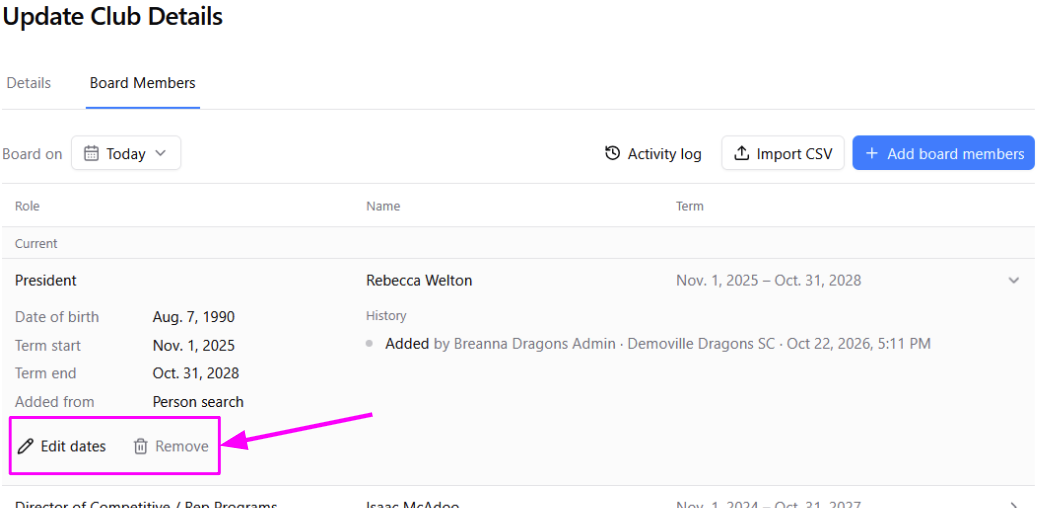
- Click the Edit dates or Remove option, as needed.
Was this article helpful?
That’s Great!
Thank you for your feedback
Sorry! We couldn't be helpful
Thank you for your feedback
Feedback sent
We appreciate your effort and will try to fix the article